


Great conference room photos
Producing
your own systems photos
Here’s a brief, step by step explanation of how I approach
AV system photography.
I'm
going to make the assumption that you’re already a practiced photographer, you
have a camera that allows you to turn off the flash, manually focus and manually
control exposure, and that you have a good understanding of how to use PhotoShop. If that’s
not the case, you’re going to have trouble taking this kind of photo and need
more training than I'll be able to give you here. Still, these steps should give
you an idea of what you'll need to learn.
Part
I: In the field
1.
Don't overlook the obvious: straighten the chairs, pick up any papers, hide any
cables visible in your shot. Stand by the camera and look at the room. Is there
anything you should straighten or move or fix?
2. If your camera allows you to shoot in Camera RAW mode, I highly recommend doing so. RAW allows you to shoot without worrying about the color settings for your camera, then adjust later in the computer using Adobe Lightroom, PhotoShop, CaptureOne or similar RAW processing software.
Note that it is very helpful in the processing stage if you buy a neutral gray card and position it in one or two places in the room where the most typical lighting can fall on it. Then shoot a test shot or two that you can use as a color reference later.
3.If you are not shooting in RAW mode, you will need to carefully white
balance your camera to the lighting in the room. Test your color by downloading
a few shots and looking at them on your laptop.
4. Make sure you don’t ever move your camera, zoom or focus, once you begin an
image.
5. You always
need to ‘bracket’ your exposures for this kind of image, that is, shoot a number
of exposures above and below what your light meter tells you is correct. But for
these, shoot an even wider range, from very dark to obviously washed out.
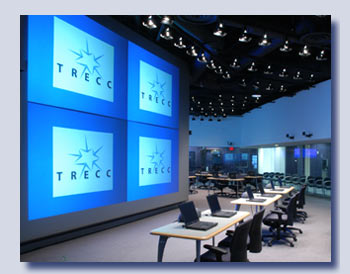
6. Consider shooting the main image with the projector(s)
or monitor(s) turned off. It depends on the particular room, but often the screen
image will be much brighter than the rest of the room and it will bleed past the
edges of the screen on your photo. Sometimes, too, you’ll get odd reflections
on tables or other objects (although you may decide you like the reflections,
as I did in the image shown at the top right of this page).
7. I use two different methods for shooting screens.
Method
1: Before you move your camera, shoot the room again exposing specifically for
the screen images. This method is faster and easier if you have
multiple screen images or if you are shooting only one or two views of the room
itself. (If you're shooting in RAW mode, this step will not be necessary, though you may need to shoot a wider series of exposures to be sure you have a good screen shot.)
If you're not shooting in RAW, be sure to change your camera's white balance
setting. For most monitors and projectors, the daylight setting will be pretty
close. Consider darkening the room to improve contrast and color. 
Method
2: Move the camera and shoot a closeup of each screen image, again possibly with
the room darkened.
This
method is easier if you only have one or two screen images and will be shooting
the room from multiple angles. It can also get you better results, because your
screen image will be dead on and thus a little brighter than it would be from
an angle.
Next:
How to finish your photos in PhotoShop
Architectural photography
for the AV industryhome
- who we are - clients - our
work - what's new - contact
us email
campaigns - websites - brochures
- seminars - photography
- logo developmentmedia
relations - competitions - customer
stories - literature - advertising
- mail - research 